
KW45xx and K32W1xx Secure Boot#
This notebook describes how to how to set up a basic secure boot on KW45xx/K32W1xx devices using the SPSDK command line utilities.
Keys preparation#
First we need to generate Root of Trust Keys (RoTKs)/Super Root Keys (SRKs) and optionally Image Signing Key (ISK). In this example, we will use nxpcrypto app to generate secp384r1 keys (see How-to-get-keys-using-nxpcrypto). Script by default load 4 RoTKs and 1 ISK. Feel free to modify it according your needs. At least one RoTK is mandatory.
See the script’s comments and modify the script according to the application security requirements.
Based on loaded keys, ROTK value is calculated and loaded in the device fuses so that’s why keys cannot be changed anymore for the device.
EVK board can have already burnt fuses RoTK (CUST_PROD_OEMFW_AUTH_PUK) and SB3KDK (CUST_PROD_OEMFW_ENC_SK). Corresponding keys are stored in EVK_keys folder. In this example, we will have the EVK board with burnt fuses.
%run ../init_notebook.ipynb

import os
import pprint

pp = pprint.PrettyPrinter(indent=4)

WORKSPACE = "workspace/"  # change this to path to your workspace
KEYS = "../_data/keys/ecc384/"  # change this to path to your keys
EVK_KEYS = "EVK_keys/"
INPUTS = "inputs/"
VERBOSITY = (
    "-v"  # verbosity of commands, might be -v or -vv for debug or blank for no additional info
)
# choose family (kw45b41z8, kw45b41z5 or k32w148)
FAMILY = "kw45b41z8"
env: JUPYTER_SPSDK=1
Created `%!` as an alias for `%execute`.
# load generated key pair for ROTK0
ROTK0_PRIVATE_KEY_PATH = EVK_KEYS + "RoT_key0_secp384r1_kw45xx.pem"
ROTK0_PUBLIC_KEY_PATH = EVK_KEYS + "RoT_key0_secp384r1_kw45xx.pub"
# verify that keys were loaded
assert os.path.exists(ROTK0_PRIVATE_KEY_PATH)
assert os.path.exists(ROTK0_PUBLIC_KEY_PATH)

# load generated key pair for ROTK1
ROTK1_PRIVATE_KEY_PATH = EVK_KEYS + "RoT_key1_secp384r1_kw45xx.pem"
ROTK1_PUBLIC_KEY_PATH = EVK_KEYS + "RoT_key1_secp384r1_kw45xx.pub"
# verify that keys were loaded
assert os.path.exists(ROTK1_PRIVATE_KEY_PATH)
assert os.path.exists(ROTK1_PUBLIC_KEY_PATH)

# load generated key pair for ROTK2
ROTK2_PRIVATE_KEY_PATH = EVK_KEYS + "RoT_key2_secp384r1_kw45xx.pem"
ROTK2_PUBLIC_KEY_PATH = EVK_KEYS + "RoT_key2_secp384r1_kw45xx.pub"
# verify that keys were loaded
assert os.path.exists(ROTK2_PRIVATE_KEY_PATH)
assert os.path.exists(ROTK2_PUBLIC_KEY_PATH)

# load generated key pair for ROTK3
ROTK3_PRIVATE_KEY_PATH = EVK_KEYS + "RoT_key3_secp384r1_kw45xx.pem"
ROTK3_PUBLIC_KEY_PATH = EVK_KEYS + "RoT_key3_secp384r1_kw45xx.pub"
# verify that keys were loaded
assert os.path.exists(ROTK3_PRIVATE_KEY_PATH)
assert os.path.exists(ROTK3_PUBLIC_KEY_PATH)
Prepare MBI configuration file#
In order to generate MBI file, npximage tool is used. The nxpimage tool generates the MBI file according to the configuration file. Let’s create a template for MBI. Modify examples according your needs.
MBI_PATH = WORKSPACE + "MBI"
%! nxpimage $VERBOSITY mbi get-templates -f $FAMILY -o $MBI_PATH --force
nxpimage -v mbi get-templates -f kw45b41z8 -o workspace/MBI --force
Creating workspace\MBI\kw45b41z8_xip_plain.yaml template file.
Creating workspace\MBI\kw45b41z8_xip_crc.yaml template file.
Creating workspace\MBI\kw45b41z8_xip_signed.yaml template file.
Creating workspace\MBI\kw45b41z8_xip_nxp_signed.yaml template file.
For signed images, we need to create a certificate blok separately. In order to do this, use nxpimage cert-block get-template command as described below.
CERT_BLOCK_TEMPLATE_DEFAULT = WORKSPACE + "cert_block_default_kw45.yaml"
%! nxpimage $VERBOSITY cert-block get-template -f $FAMILY -o $CERT_BLOCK_TEMPLATE_DEFAULT --force
nxpimage -v cert-block get-template -f kw45b41z8 -o workspace/cert_block_default_kw45.yaml --force
Creating workspace\cert_block_default_kw45.yaml template file.
In our case, we modified these items in the certification block configuration template:
CERT_BLOCK_TEMPLATE = INPUTS + "cert_block_kw45_secure.yaml"
assert os.path.exists(CERT_BLOCK_TEMPLATE)
Choose whether you want to use ISK. If so, define the path to the ISK public key.

Define paths to keys and choose index of main certification key.

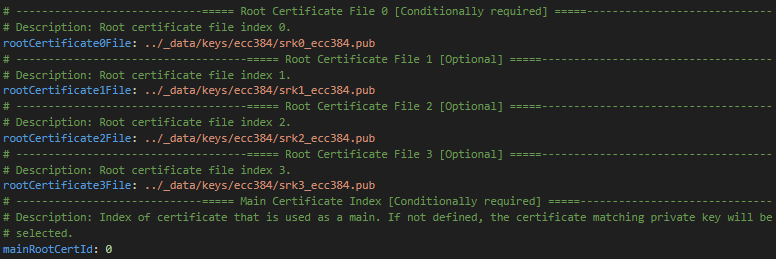
Define output path where certification block will be saved.

Our case does not require the definition of the following items, but it would be appropriate to consider their use for the given case.

Next, we modified the MBI XIP signed configuration template such as:
MBI_TEMPLATE = INPUTS + "kw45xx_xip_signed.yaml"
assert os.path.exists(MBI_TEMPLATE)
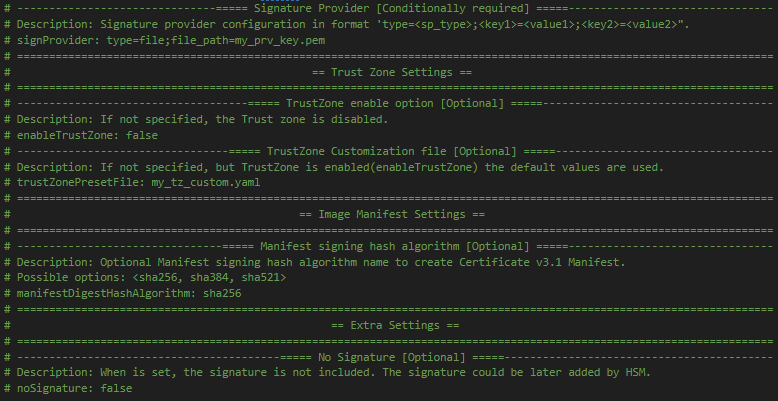
Define output path where final MBI XIP signed will be saved.

Define path to the plain image to be modified to MBI.

Define path to the certification block that was generated in previous step.

Define path to the ISK private key.

Our case does not require the definition of the following items, but it would be appropriate to consider their use for the given case.
MBI generation#
We have created certificates and keys required for the creation of MBI file. Let’s create a MBI.
MBI_OUTPUT_FILE = WORKSPACE + "kw45xx_mbi_xip_signed_hello_world.bin"
%! nxpimage mbi export -c $MBI_TEMPLATE
assert os.path.exists(MBI_OUTPUT_FILE)
nxpimage mbi export -c inputs/kw45xx_xip_signed.yaml
RKTH: 650d8097079ff27a3e8a2da14781b922fd8295b6c00bfa067f00e87f1a16b8b304bf710d45cbd591e2e24be83183922c
Success. (Master Boot Image: workspace\kw45xx_mbi_xip_signed_hello_world.bin created.)
Device preparation#
Now it’s time to prepare the device. In this example we will use KW45xx-EVK/K32W1xx board.
First step is to enter ISP mode, this could be achieved by:
1 ) Put JP25 to (1-2)
2 ) Reset the board with SW4 pressed
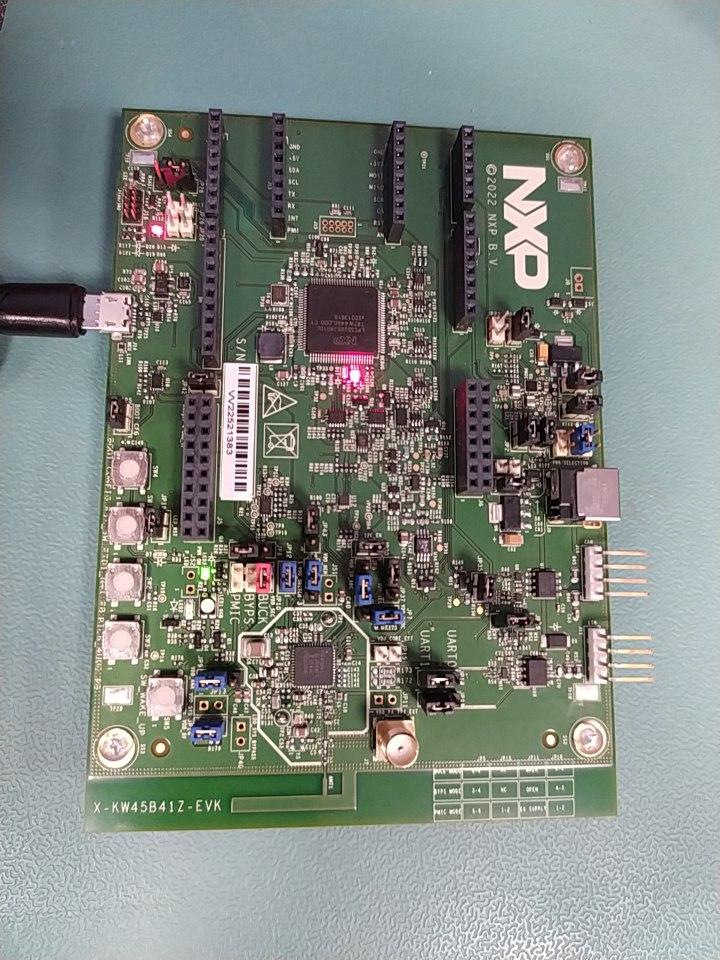

Use app nxpdevscan to check if the device is connected to the PC in ISP mode.
# check if the device is connected and detected by PC
%! nxpdevscan
nxpdevscan
-------- Connected NXP USB Devices --------

-------- Connected NXP UART Devices --------

Port: COM10
Type: mboot device

-------- Connected NXP SIO Devices --------

-------- Connected NXP UUU Devices --------
# choose com port
UART_CONNECTION = "-p com10"

%! blhost $UART_CONNECTION get-property current-version
blhost -p com10 get-property current-version
Response status = 0 (0x0) Success.
Response word 1 = 1258488064 (0x4b030100)
Current Version = K3.1.0
Program device fuses with keys/RKTH generated in previous steps#
WARNING!!! In our case, we already have burnt these fuses on EVK
To program fuses blhost tool is used. Device needs to be in ISP mode, where it can communicate with blhost and process blhost commands. To serve the purpose of this document, ISP communication only over UART peripheral is considered for scripts. Also, accurate COMx port must be used.
WARNING!!! This step is destructive operation (burning fuses), be sure that you set value of RoTKH correctly in script as printed in output from nxpimage
# Increase voltage for fuse burning
blhost $UART_CONNECTION set-property 0x16 1

# Program RKTH (CUST_PROD_OEMFW_AUTH_PUK)
# Put value RKTH generated by nxpimage
%! blhost $UART_CONNECTION fuse-program 0x1F [[89e4983eb79bed26fc25cf6ba9b89ddb6727c80ed7c786a6f3c77c09bba0e832b468895926a6568031c0f955a614434e]]

# Set voltage to normal value
blhost $UART_CONNECTION set-property 0x16 0
Send MBI file to device#
Last step is to uploads MBI file with NBU image to device.
# Erase all flash
%! blhost $UART_CONNECTION flash-erase-all
blhost -p com10 flash-erase-all
Response status = 0 (0x0) Success.
# uploads MBI
%! blhost $UART_CONNECTION write-memory 0x0 $MBI_OUTPUT_FILE
blhost -p com10 write-memory 0x0 workspace/kw45xx_mbi_xip_signed_hello_world.bin
Writing memory
Response status = 0 (0x0) Success.
Response word 1 = 2872 (0xb38)
%! blhost $UART_CONNECTION reset
blhost -p com10 reset
Response status = 0 (0x0) Success.